Fuel File Upload Template
Overview
This guide helps you choose the correct fuel upload template when multiple options are available. It highlights the most important columns from your pricing file, though not every column is shown. If you need help, please contact BartSupport@portside.co
AEG (P)
Column 1: Airport Code
Column 3: FBO
Column 3: FBO
Column 8 - 17: Qty
Column 8 - 17: Price
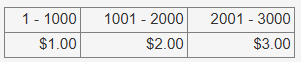
Column 8 - 17: Price
AEG (UNIFIED)
Column 1: Airport Code
Column 5: FBO
Column 9: From Qty
Column 10: To Qty
Column 11: Price
Column 5: FBO
Column 9: From Qty
Column 10: To Qty
Column 11: Price
AEG 2
Column 1: Airport IATA
Column 2: Airport ICAO
Column 4: FBO
Column 9: From Qty
Column 10: To Qty
Column 11: Price
Column 2: Airport ICAO
Column 4: FBO
Column 9: From Qty
Column 10: To Qty
Column 11: Price
Atlantic Aviation
Column 1: Airport Code
Column 2: Fuel Type
Column 5: Price
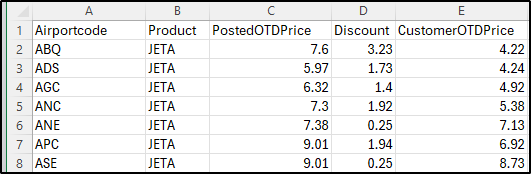
Column 1: Airport Code
Column 2: Fuel Type
Column 5: Price
Atlantic V2
Column 1: Airport Code
Column 2: Fuel Type
Column 3: Price
Column 1: Airport Code
Column 2: Fuel Type
Column 3: Price
AvFuel (v1)
Column 4: Airport ICAO
Column 5: FBO
Column 7: From Qty
Column 8 To Qty
Column 9: Price
Column 4: Airport ICAO
Column 5: FBO
Column 7: From Qty
Column 8 To Qty
Column 9: Price
Column 10: Effective Date
AvFuel (v2)
Column 1: Airport IATA
Column 4: FBO
Column 5: From Qty
Column 6: To Qty
Column 9: Price
Column 1: Airport IATA
Column 4: FBO
Column 5: From Qty
Column 6: To Qty
Column 9: Price
Column 10: Effective Date
AvFuel (v3)
Column 4: Airport ICAO
Column 5: Airport IATA
Column 6: FBO
Column 8: From Qty
Column 9: To Qty
Column 10: Price
Column 4: Airport ICAO
Column 5: Airport IATA
Column 6: FBO
Column 8: From Qty
Column 9: To Qty
Column 10: Price
Column 11: Effective Date
Column 19: Fuel Type
Column 19: Fuel Type
AvFuel (v4)
Column 1: Airport IATA
Column 2: Airport ICAO
Column 5: FBO
Column 6: From Qty
Column 7: To Qty
Column 10: Price
Column 1: Airport IATA
Column 2: Airport ICAO
Column 5: FBO
Column 6: From Qty
Column 7: To Qty
Column 10: Price
Column 11: Effective Date
Column 14: Fuel Type
Column 14: Fuel Type
AvFuel V5
Column 4: Airport ICAO
Column 5: Airport IATA
Column 6: FBO
Column 8: From Qty
Column 9: To Qty
Column 10: Price
Column 4: Airport ICAO
Column 5: Airport IATA
Column 6: FBO
Column 8: From Qty
Column 9: To Qty
Column 10: Price
Column 11: Effective Date
CAA/CAA1
Column 1: Airport Code
Column 2: FBO
Column 2: FBO
Column 6 -11: Qty

Everest
Column 1: Airport ICAO
Column 2: FBO
Column 2: FBO
Column 3: From Qty
Column 4: Price
Column 4: Price
Everest/Everest 2
Column 1: Airport ICAO
Column 2: FBO
Column 2: FBO
Column 3: From Qty
Column 4: Price
Column 4: Price
Signature (5 Column)
Column 1: Airport Code
Column 3: From Qty
Column 4: To Qty
Column 4: To Qty
Column 5: Price
Signature Bravo
Column 1: Airport Code
Column 2: From Qty
Column 3: To Qty
Column 3: To Qty
Column 4: Price
Signature Bravo 5 Column
Column 1: Airport Code
Column 3: From Qty
Column 4: To Qty
Column 4: To Qty
Column 5: Price
World Fuel (C) File
Column 1: Airport Code
Column 3: FBO
Column 4: From Qty
Column 4: From Qty
Column 5: Price
Column 7: Effective Date
Column 7: Effective Date
World Fuel (P) File
Column 1: Airport Code
Column 3: FBO
Column 4: From Qty
Column 4: From Qty
Column 5: Price
Column 6: Fuel Type
Column 8: Effective Date
Column 6: Fuel Type
Column 8: Effective Date
World Fuel (Z)
Column 3: Airport Code
Column 4: FBO
Column 5: From Qty
Column 6: To Qty
Column 5: From Qty
Column 6: To Qty
Column 7: Effective Date
Column 10: Price
World Fuel Services
Column 1: Airport Code
Column 3: FBO
Column 4: From Qty
Column 5: Price
Column 4: From Qty
Column 5: Price
Column 8: Effective Date